To set up Stripe Checkout, you will need to get your API keys and set up a webhook.
Your API keys
Log into your Stripe account. Be sure you are in your live account and not in sandbox or test mode then CLICK HERE.
On that page it will list your API keys under Standard Keys.
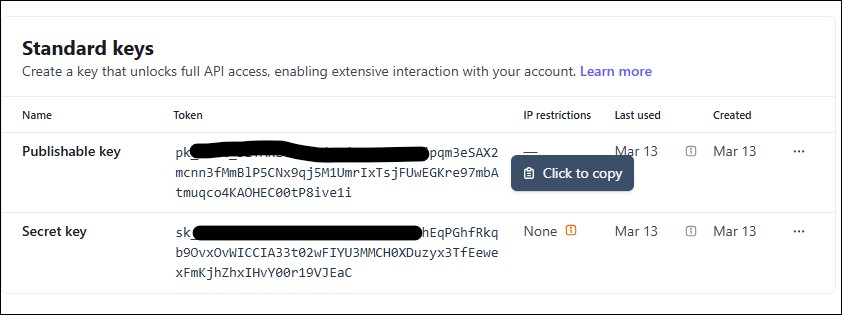
Click those keys individually to copy them and then paste them into your Stripe Checkout settings in Sytist.
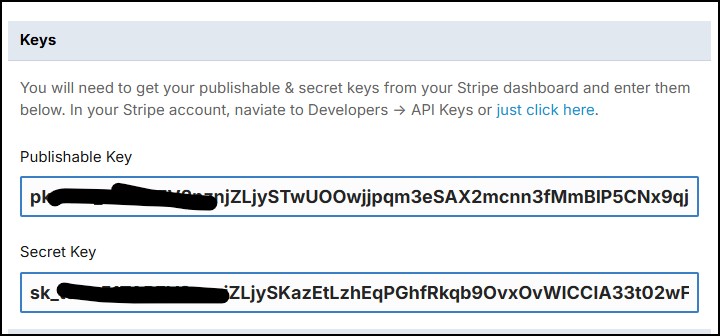
Go ahead and save your settings in Sytist.
Webhook
In your Stripe account you will need to enter the URL for the webhook. This is a file on your site that Stripe sends data back to to create the orders and such.
Click here to go to Webooks in your Stripe account.
Click on Add Destination.
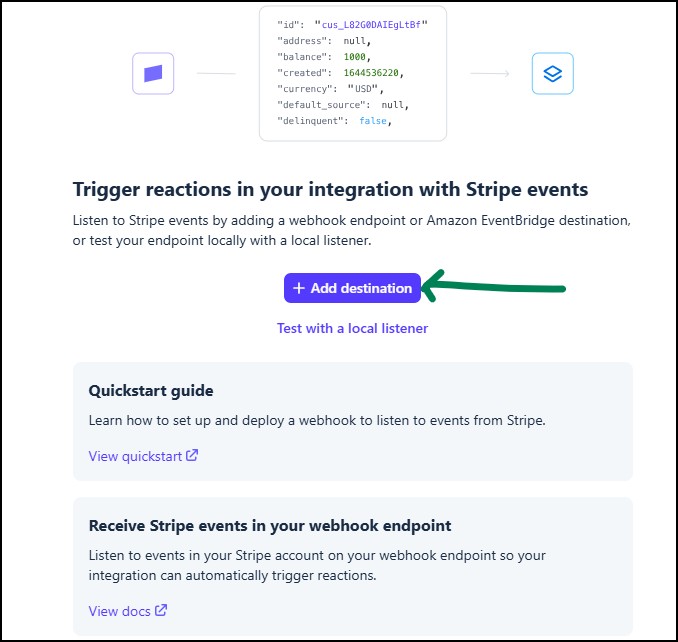
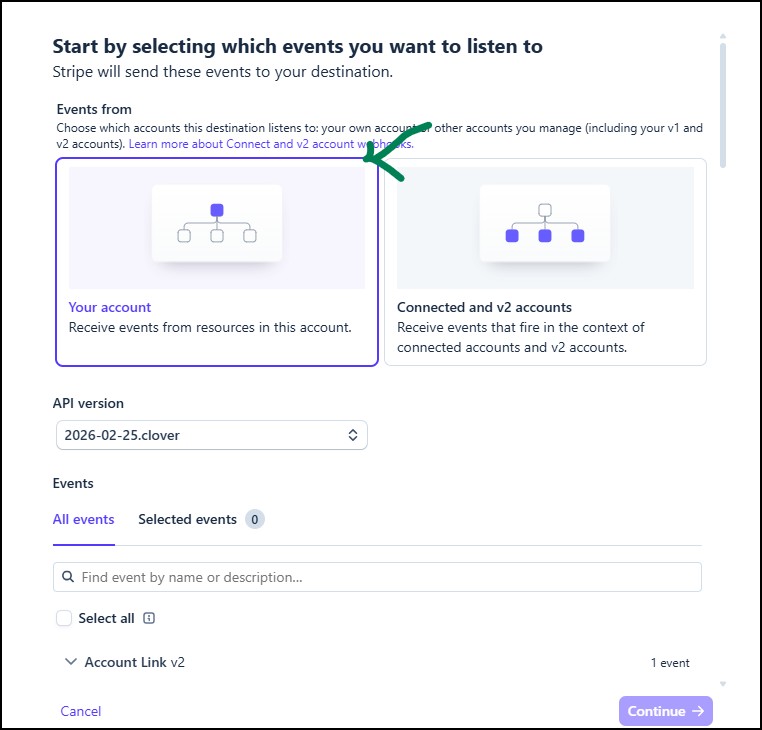
Your account should be selected by default, if not, select it.
SCROLL DOWN
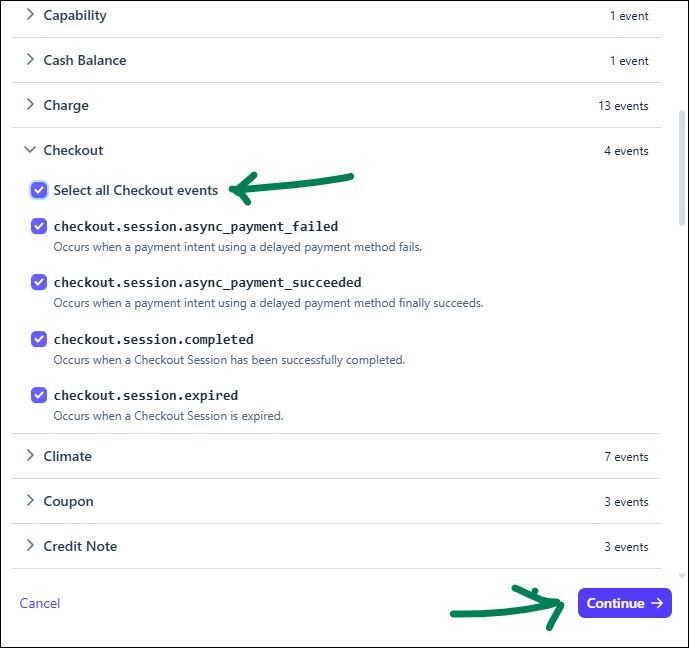
Scroll down to Checkout, click it and click Select all Checkout events then Continue.
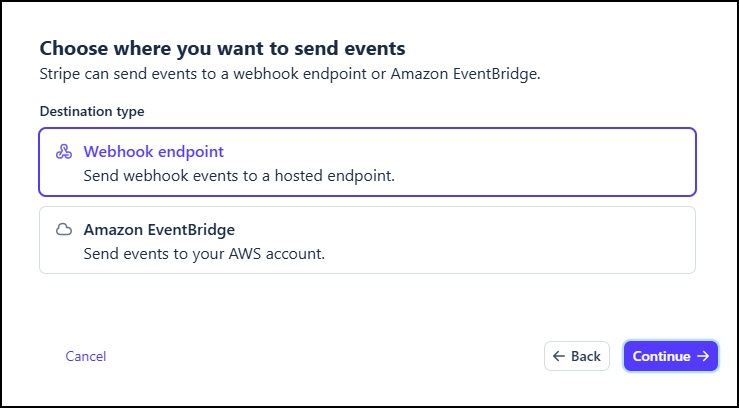
Webhook endpoint then continue.
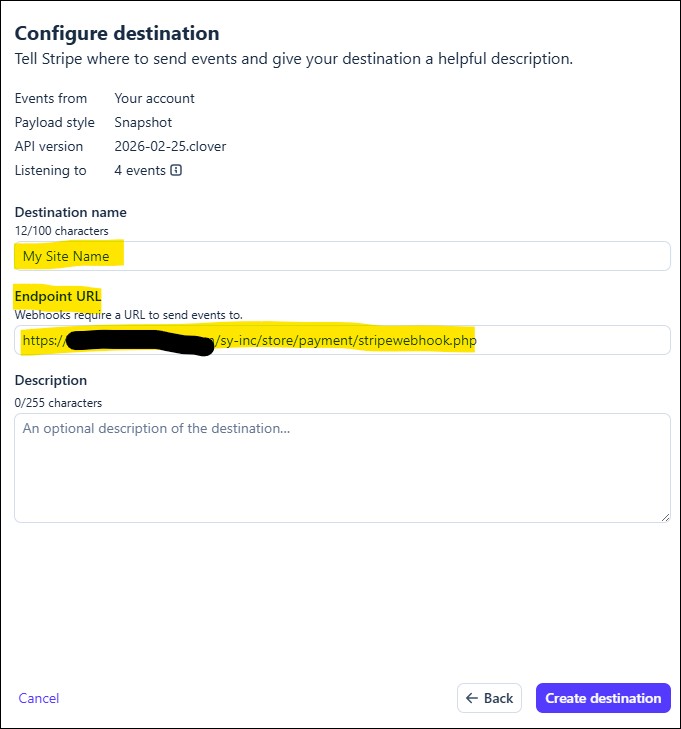
The following you will enter your webhook endpoint URL. Copy this URL from your Stripe settings in your Sytist admin and paste it to this page. You can just enter in your site name for destination name. Click create destination.
Webhook Signing Secret
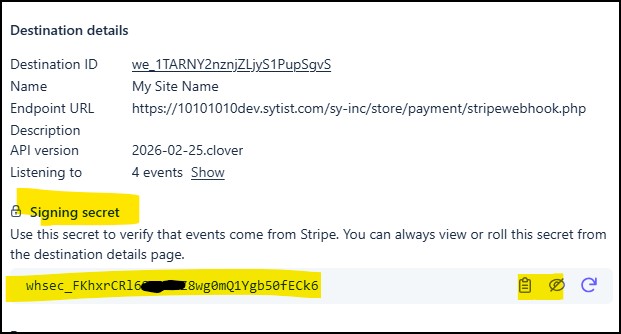
Last step is to get your Webhook Signing Secret. This will be displayed after your have created your destination. Click the eye icon, then click the clipboard icon to copy your signing secrete and paste it into your Webhook Signing Secret in your Stripe settings in Sytist.
Now you can check the Active checkbox for your Stripe Checkout and save to make it live.